
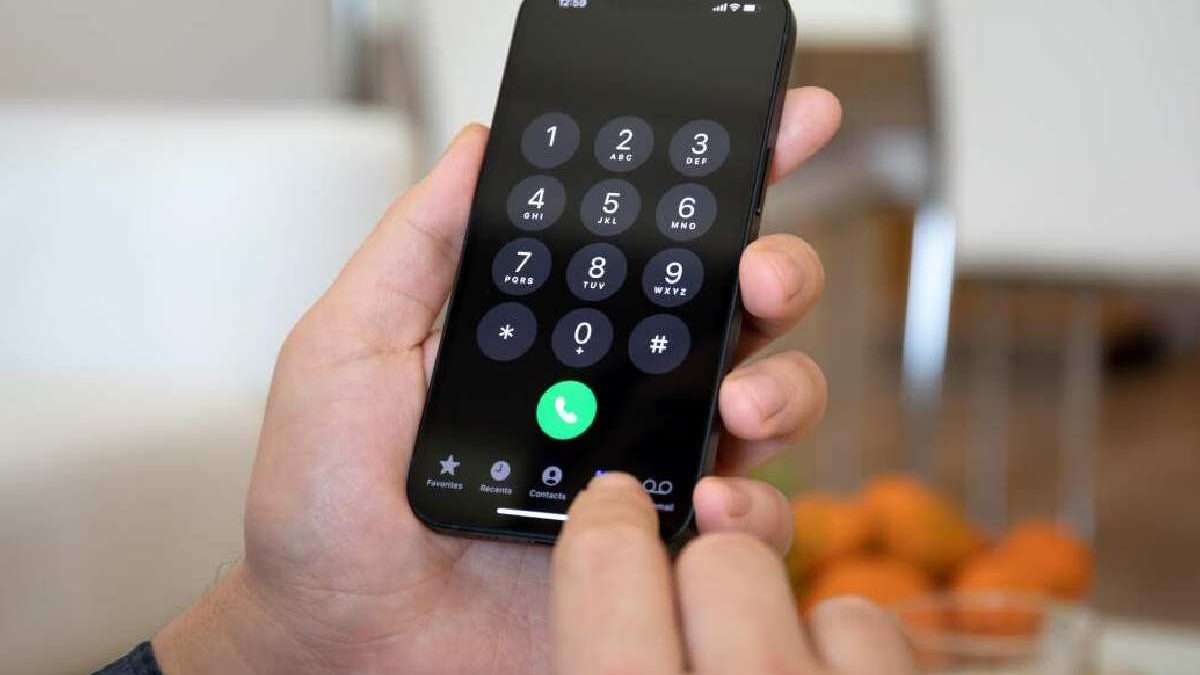
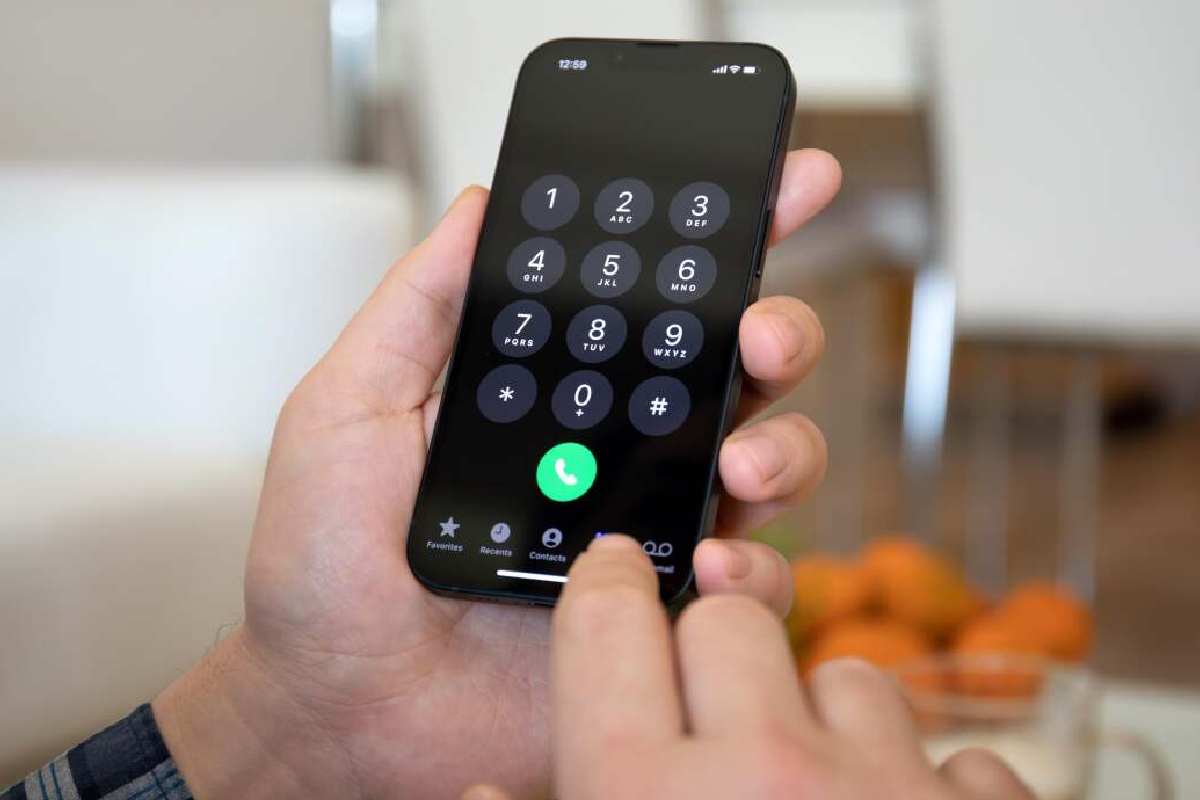
Tired of digging through your contacts every time you want to call your best friend, your partner, or that pizza place you order from way too often? The old-school “press and hold 1 for Mom” speed dial is long gone, but your iPhone actually has much better (and much cooler) ways to reach your favorite people in literally one or two taps.
Here are the three easiest and most practical methods to get real speed dial back on your iPhone — no jailbreaking required.
Table of Contents
Method 1: Use the Phone App’s “Favorites” List (The Easiest Way)
The built-in Favorites tab is basically Apple’s version of modern speed dial. It lives right inside the Phone app and gets you calling in two taps max.
How to add someone to Favorites:
- Open the Phone app → Contacts tab.
- Tap the person you want.
- Scroll down a bit and hit “Add to Favorites.”
- Pick if you want their regular phone call, FaceTime Audio, or video FaceTime.
How to actually call them:
- Open the Phone app.
- Tap Favorites (bottom left).
- Tap their name or photo — done.
Pro tip: Want them higher on the list? Hit Edit in the top-right corner and drag them around with the little ≡ handles.
Method 2: Create a One-Tap Home Screen Shortcut
Want an actual button on your Home Screen that calls someone with a single tap (and looks like their photo)? The Shortcuts app makes this ridiculously easy.
How to make it:
- Grab the free Shortcuts app from the App Store if you don’t have it already.
- Open Shortcuts → tap the + in the top right.
- Tap Add Action → search “Call” → choose the Call action.
- Tap the blue “Contact” link and pick the person.
- Tap the three dots (•••) at the top.
- Choose Add to Home Screen.
- Tap the icon → Choose Photo → pick their picture (or anything you want).
- Hit Add — boom, it’s now on your Home Screen.
Quick fix if it doesn’t dialing automatically: Go back into the shortcut, tap the little i on the Call action, and turn off “Show When Run.”
Method 3: Download a Dedicated Speed Dial App
If you miss the old T9 dialing days, want huge buttons, or love widgets, grab a third-party app. Just search “speed dial” in the App Store — apps like Speed Dial: Contact Widget & T9 are super popular. They give you big customizable buttons, Today View widgets, and sometimes even that classic keypad name search.
Which Method Should You Choose?
- Just want it fast and dead simple? → Stick with the built-in Favorites list.
- Want a pretty icon on your Home Screen that calls with one tap? → Make a Shortcut.
- Miss T9 or want fancy widgets and layouts? → Get a dedicated app.
There you go — pick whichever fits your vibe and you’ll never scroll through your whole contact list again. Your most-called people are now literally one tap away.
Conclusion & Final Recommendation
For most people, Method 2 (Home Screen Shortcuts) wins hands-down. You get a real, honest-to-goodness speed-dial button right on your Home Screen—complete with their photo, one single tap, and zero digging around. It feels exactly like the old-school speed dial we all miss, but better.
Keep Method 1 (Favorites) as your quick backup inside the Phone app (perfect for when your hands are full or you’re already in the app anyway). And only go for Method 3 (Third-Party Apps) if you’re the type who loves widgets, T9 dialing, or super-custom layouts.
Set up a couple of those Home Screen shortcuts tonight (Mom, your partner, the pizza place…) and you’ll wonder how you ever lived without them. Seriously—one tap and you’re talking. Life’s too short for scrolling through contacts
Frequently Asked Questions
Q: Can I set a speed dial to work even when my iPhone is locked?
A: Yep, totally possible! The Home Screen Shortcut from Method 2 works straight from the Lock Screen (just swipe left to your widgets/shortcuts page or keep it on the first Home Screen page). For true emergency situations, add your most important people to your Medical ID or set up Emergency SOS auto-call.
Q: Is there a way to call someone fast without adding them to Favorites first?
A: Oh yeah, Spotlight is clutch move:
- Swipe down from the middle of your Home Screen.
- Start typing their name.
- When they pop up, tap the little phone icon next to their name and it dials instantly. Works like magic.
Q: How do I create a speed dial for texting or FaceTime instead of a call?
A: Same Shortcuts trick (Method 2), just swap the action. Instead of searching “Call,” type “Send Message” or “FaceTime,” pick your contact, and boom—you now have a one-tap text or FaceTime button on your Home Screen.
Q: I have an old landline habit. Can I set up “press and hold a number” speed dial on iPhone?
A: Sadly Apple killed that exact feature, but the Home Screen Shortcut is honestly better—one actual tap instead of press-and-hold. You’ll get over the muscle memory in like two days, promise.
Q: What’s the “Emergency Bypass” setting I see in a contact?
A: Absolute lifesaver. Turn this on for your partner, kids, or parents and their calls/texts will ring (and vibrate) even when your phone is on Silent or Do Not Disturb. It’s buried in the contact → Ringtone/Text Tone settings.
Q: How many contacts can I add to my Favorites list?
A: There’s no hard limit, but once you go past 20–25 it stops feeling “fast.” At that point just make a few Home Screen shortcuts for the real VIPs and keep Favorites lean.
Q: Can I use Siri for speed dial?
A: 100 %—and it’s often the fastest way. Just say “Hey Siri, call Mom” (or whoever). Works even from across the room if your phone’s listening. Pro move: give people nicknames in Contacts (“call My Love” or “call Pizza Guy”) and Siri will obey.
Related Reading: Check out our guide on how to choose the right Mobile Payment Apps.